

Appearance
Messages
Rules can tell people what happened: a notification under the bell, an email, an SMS, or a comment on the record. Each text can name the record's values, such as its subject or its customer's name.
Values in a text
A text names a field with its key between double braces: {{ subject }} puts in the ticket's subject, as the record page shows it. {{ customer.name }} reads the field First name of the contact in the ticket's Customer field. {{ actor.name }} is the person who set the rule off, and {{ record.url }} the address of the record's page.
You don't have to know the keys. Under each text there is a box, Insert a value into the message (or the subject, the email, the comment): type a few letters, pick the value, and it goes where the cursor is.
Each reader gets the text filled in with what they may see. A field they may not see stays empty for them. The reference has more: Texts that name the record.
A notification: the amount of a deal changed
Step: Send a notification. When someone changes the amount of a deal, its owner is told who did it and the new amount.
Administration › Automation, Entity: Deals, Add a rule.
Name:
Tell the owner about a new amount.When: A record is changed, only when Amount changes.
Add a step: Send a notification:
- To: The people of Owner. The list also has the record's followers, whoever set the rule off, roles and teams.
- And these people: anyone else, by name (optional).
- Message: type
changed the amount ofand use Insert a value into the message for the values, until it reads:
twig{{ actor.name }} changed the amount of {{ title }} to {{ amount }}.Open Preview, under the step. Pick a deal in Record and click Preview: the message shows filled in with that deal. An administrator can choose, in Read it, As someone else sees it, and a person.
Save the rule.
Someone who may not see the record is left out: they get nothing.
An email with a template: the ticket is solved
Step: Send an email. When a ticket is solved, its customer gets an email. The text is a message template, so that several rules can share it and it can be changed in one place.
Emails go out through the installation's mail settings: check them first in Email.
The template
In Administration › Automation, choose Entity: Tickets and open the Templates tab.
Click Add an email template.
Name:
Ticket solved.Subject: type it, with Insert a value into the subject for the subject of the ticket:
twigSolved: {{ subject }}Email: write the body in the editor. Bold, lists and links work. Use Insert a value into the email for the values:
twigHello {{ customer.name }}, Your request "{{ subject }}" is solved. If something is still wrong, just reply to this email. The {{ site.name }} support teamOpen Preview, pick a ticket in Record and click Preview. Click Send me a test to get the email at your own address ("Sent to your address").
Click Save the template.
The rule
- Back on the Rules tab (still Tickets), Add a rule.
- Name:
Tell the customer the ticket is solved. - When: A record is changed, only when Status changes.
- Only if: Status is any of Solved.
- Add a step: Send an email:
- To: The address in Customer › Email: the email field of the contact the ticket's Customer field points at.
- Text: The template Ticket solved.
- Replies go to: An address, and in Reply address
support@example.com. Or The site’s own address.
- Preview works here too, with As an address outside Qorekit gets it; so does Send me a test.
- Save the rule.
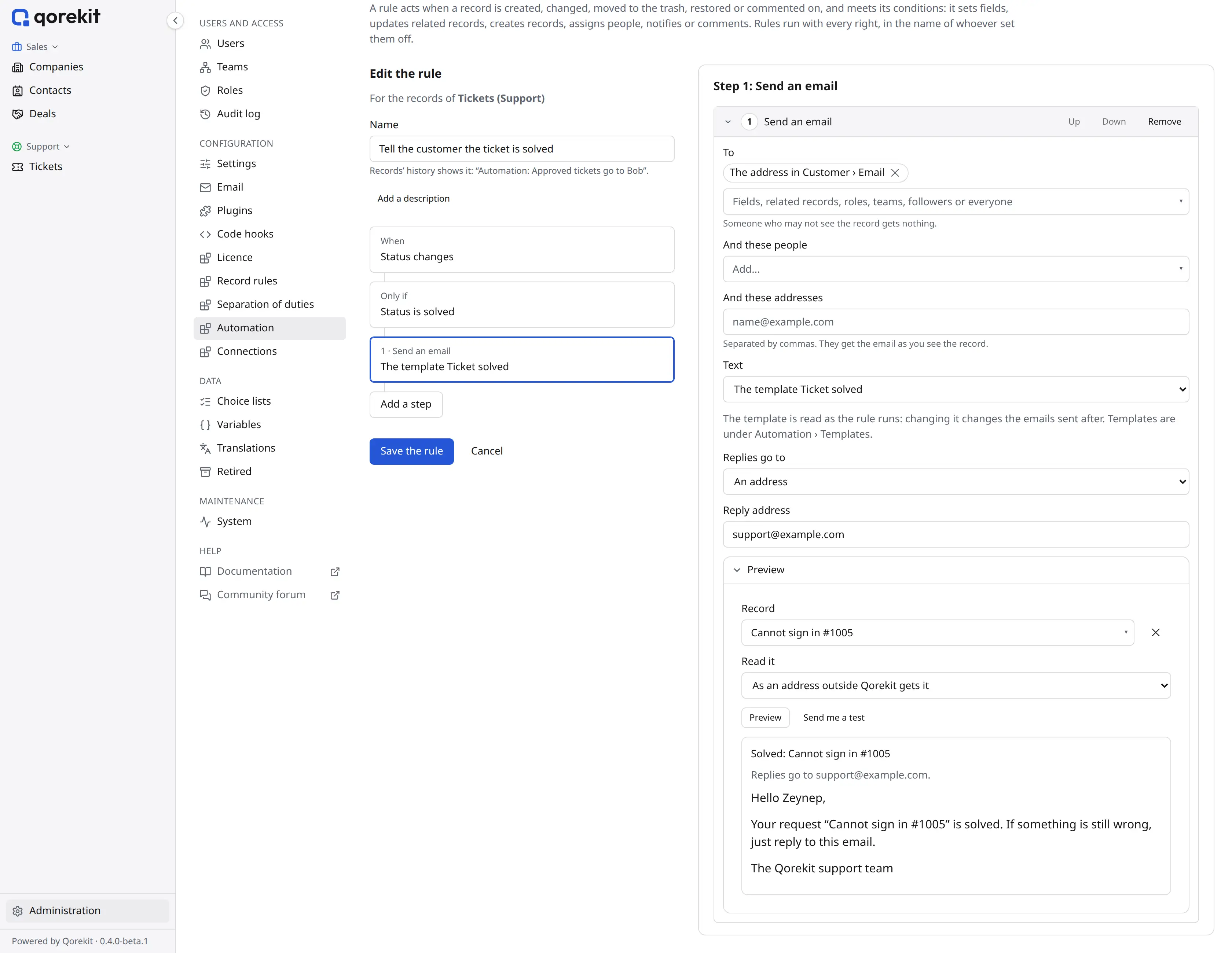
The customer is not a user of Qorekit: they get the email as the rule's author sees the ticket. To write the text in the rule instead, choose Text: Written here: a Subject and an Email box show.
To also takes people (the people of a user field, roles, teams, the followers, Everyone who may see the record), and And these addresses, separated by commas. Attach the files of sends the files of file fields along. More about emails, their tables of records and their limits: Message templates.
An SMS: the customer hears about an urgent ticket
Step: Send an SMS. When an urgent ticket is created, its customer gets a text message, but only if they agreed to get them.
Before you start:
- An SMS connection, in Administration › Connections: see SMS connections. Its Send a test SMS checks that it works.
- On Contacts, a field SMS allowed of the type Yes or no: the customer's consent. The contacts' Phone field holds numbers with their country code, such as
+1 415 555 0132.
The rule:
Entity: Tickets, Add a rule, Name:
Text the customer about an urgent ticket.When: A record is created.
Only if: Priority is any of Urgent.
Add a step: Send an SMS:
- Connection: your SMS connection.
- To: The number in Customer › Phone.
- Send to: Numbers of Customer only if its SMS allowed is Yes. A customer whose SMS allowed is not ticked gets nothing.
- Text: Written here.
- Message:
twigWe got your urgent request "{{ subject }}" and we are on it. {{ site.name }}Under the message, Qorekit counts its characters and the parts it takes. An SMS is plain text: a long one, or one with letters outside the basic SMS alphabet, costs more parts.
Preview, with As a number outside Qorekit gets it, shows the text and its parts.
Save the rule.
To can also hold people of Qorekit: they get the message at the mobile number verified on their account. And these numbers takes given numbers, separated by commas. Given numbers and people always get the message; Send to only filters the numbers of records. SMS templates are made like email templates, with Add an SMS template.
A comment: who took the ticket
Step: Add a comment. When someone puts a person in a ticket's Assignee field, the ticket's comments say so.
Entity: Tickets, Add a rule, Name:
Note who took the ticket.When: A record is changed, only when Assignee changes.
Only if: Assignee is not empty.
Add a step: Add a comment. Comment:
twig{{ assignee }} took the ticket.Save the rule.
The comment is written by the rule: it shows as "Automation: Note who took the ticket". Everyone who may see the record reads it, so a comment names only fields that everyone may see; others stay empty. A rule run by a button can write the comment in the name of whoever pressed it.