

Appearance
Automation, step by step
Automation is part of Qorekit Pro. These pages build rules click by click, from an empty rule to one that works. Each example has a goal you might have yourself.
The examples use the sample company that the public demo has: Sales with Companies, Contacts and Deals (each deal has its Activities, a sub-entity), and Support with Tickets. Your own entities work the same way; only the names of the fields differ. When an example needs a field the sample company does not have, it says so first.
Everything rules can do, and the limits, are in the reference: Automation.
Every step, and its example
| Step | Example |
|---|---|
| Set fields | Before saving: the probability follows the stage |
| Update related records | Lost deals close their activities |
| Create a record | Won deals get a kick-off call |
| Assign someone | Your first rule |
| Send a notification | Tell the owner when the amount changes |
| Send an email | Tell the customer the ticket is solved |
| Send an SMS | Text the customer about an urgent ticket |
| Add a comment | Note who took the ticket |
| Send a request | A won deal makes an invoice |
| Find and update a record | A contact form opens a ticket |
| Copy the record | An activity that repeats every month |
| Move to the trash | Solved tickets go to the trash |
| Run code | Work out the probability in PHP |
| If… else… | Urgent or not |
| Wait | Chase a ticket that waits for the customer |
| Run another rule | Share steps between rules |
| Stop | Nothing to send without a customer |
And for each way a rule starts:
| The rule runs when | Example |
|---|---|
| A record is created | Your first rule |
| A record is changed | Won deals get a kick-off call |
| Someone comments on a record | A comment reopens a waiting ticket |
| A record is moved to the trash, A record is restored | Other changes |
| A date of the record comes | A day before a deal should close |
| On a schedule | Every Monday, the waiting tickets and a ticket every month |
| Another rule runs it | Share steps between rules |
| A request comes in | A contact form opens a ticket |
| Someone presses a button | Approve and Reject buttons |
Before you start
- Qorekit Pro is installed and its license is active (Qorekit Pro).
- You are an administrator, or your role has the permission Manage automation rules (Roles and permissions).
- Scheduled work runs (cron). Rules of time, steps that wait and failed runs that are tried again need it. Without cron, they run only after someone opens a page, so they can be late.
Your first rule: urgent tickets go to support
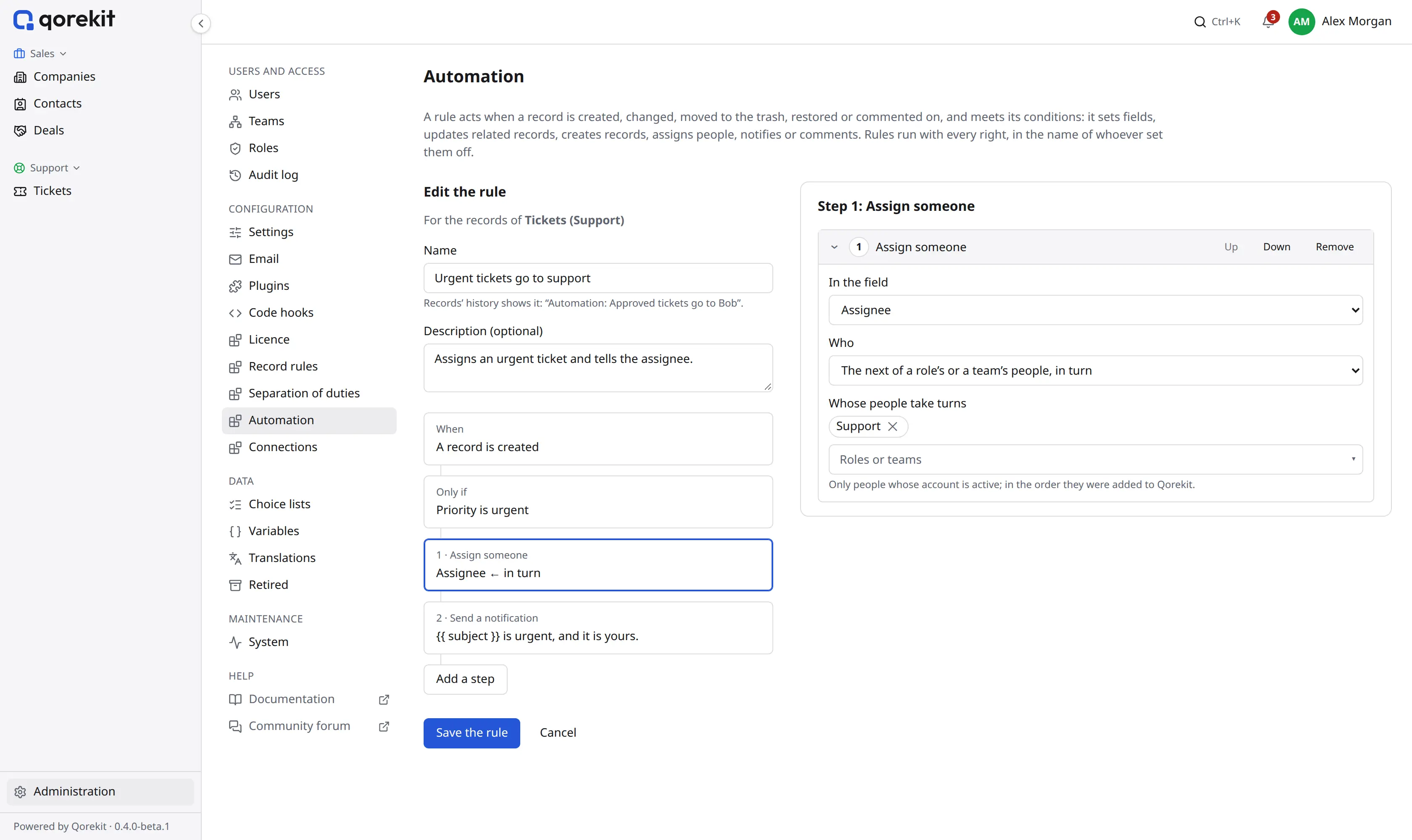
The goal. When someone creates a ticket with the priority Urgent, a person of the Support role is put in its Assignee field at once, and that person gets a notification.
Open Administration › Automation.
In Entity, type
Ticketsand choose it. The page shows the tabs Rules, Templates and Runs (and Settings, for administrators).On the Rules tab, click Add a rule. The editor opens: on the left, the rule as a column of boxes, When, Only if and its steps; on the right, the settings of the box you click. (On a narrower page, the settings come below.)
In Name, type
Urgent tickets go to support. Records' history shows this name: "Automation: Urgent tickets go to support".The When box is already chosen. In its settings, The rule runs when, choose A record is created.
Click the Only if box. It reads Always: the rule would run for every new ticket. Click Add a condition, then choose the field Priority, the condition is any of, and the value Urgent. Leave Done by empty (anyone) and every box under Through ticked. The box on the left now reads the condition.
Click Add a step, at the bottom of the column, and choose Assign someone. The step gets its box, "1 · Assign someone", and its settings open on the right, under Step 1: Assign someone:
- In the field: Assignee.
- Who: The next of a role’s or a team’s people, in turn.
- Whose people take turns: Support.
Click Add a step again and choose Send a notification. In Step 2: Send a notification:
- To: The people of Assignee.
- Message: type the text below. Instead of typing
subject, you can click Insert a value into the message and choose Subject.
twig{{ subject }} is urgent, and it is yours.Click Save the rule, under the column. The editor closes and the rule shows in the list, already on.
Try it. Open Support › Tickets, click New record, type a subject, choose the priority Urgent and save. The ticket's Assignee now holds a Support person, and that person has a notification under the bell. The ticket's history says "Automation: Urgent tickets go to support".
The steps run in order: the notification of step 2 goes to the person that step 1 put in the field.
Nothing happened?
Open the Runs tab (below). If the rule has no run, the record did not meet the conditions: check the priority. If a run failed, it says why.
How the editor works
A rule is three kinds of boxes, one under the other: When, Only if and one box per step. Each box says in a line what it holds, so the column reads like a sentence: When a record is created, only if Priority is any of Urgent, 1 · assign someone, 2 · send a notification. Click a box to see and change its settings on the right.
When says what sets the rule off: a record is created, changed, moved to the trash, restored or commented on; a date of the record comes; a schedule; another rule; a request from another service; or a button someone presses.
Only if says which records count; it reads Always when it has no condition. It works like a list's filter: conditions on the record's fields, in groups if you need them. Two more narrow it, for rules that changes set off:
- Done by: only changes made by some people, roles or teams.
- Through: only changes made through some doors: The interface, The API, An import or Automation. Untick An import so that importing a thousand records does not send a thousand notifications.
The steps run in order. Add a step, at the bottom of the column, adds one; its settings open at once. A step's box reads Not set up yet until its settings are filled in. In a step's settings, Up and Down move it and Remove takes it away.
A rule needs a name and at least one step; until then, Save the rule stays greyed out. If something is wrong (a field not chosen, a message not written), saving marks that box in red and opens it, with the message.
In these guides, "When: …" means: click the When box and set what follows. "Only if: Status is any of Waiting" means: click the Only if box, click Add a condition, and choose the field, the condition and the value. "Add a step: Send an email" means: choose it from Add a step, then fill in its settings.
Turning a rule off and on
In the list of rules, the On box at the start of each row turns the rule on or off. A rule that is off does nothing, and keeps its settings and its runs: untick it to stop a rule for a while without deleting it. New rules are on as soon as they are saved.
Click a rule's name, or Edit, to change it. Delete removes it.
When one change sets off several rules of the entity, they run from the top of the list down. Up and Down in the row change the order.
What happened: the Runs tab
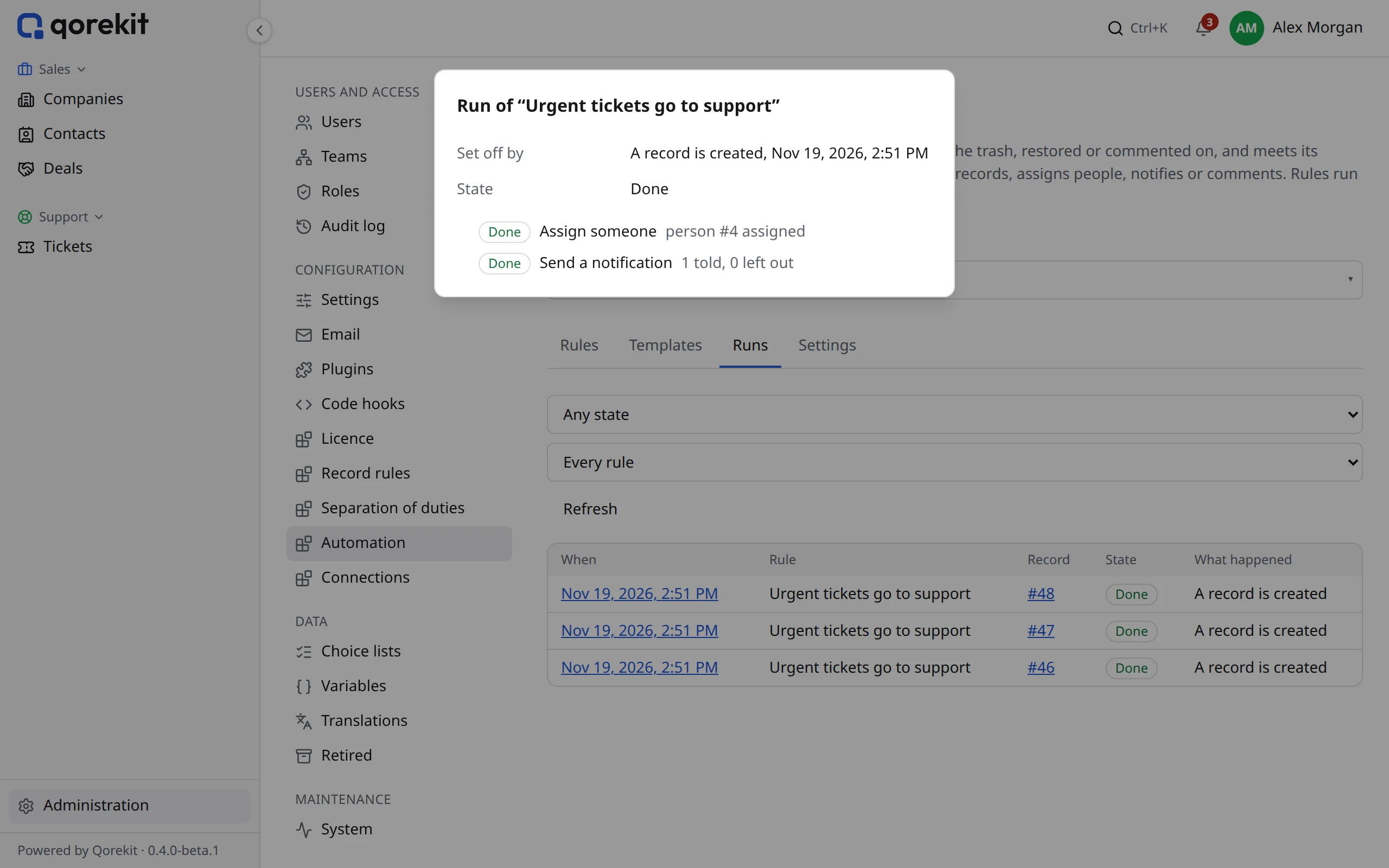
Each time a rule runs, the Runs tab gets a line: When, Rule, Record (a link to it), State and What happened. The newest come first. Choose a state (Failed, say) or a rule to see only those, and click Refresh for new runs.
Click the time in the When column to open the run. It shows what set it off, its state, the last error, and each step with what it did. The states:
| State | It means |
|---|---|
| Waiting | It waits to run, or a Wait step holds it until the time shown |
| Running | It is running now |
| Done | Every step was done |
| Failed | A step failed and will not be tried again by itself |
| Skipped | It did not run, for the reason shown (for example, rules setting each other off) |
| Stopped | A Stop step ended it, or the record no longer met the conditions after a wait |
| Not reached | (a step) The run ended before this step |
The list of rules also shows, for each rule, its Last run and its number of Failed runs.
When a run fails
A step can fail: another service does not answer, an email can't be sent, a value is refused. A failed run is tried again by itself after 1, 5 and 15 minutes. If it still fails, it stays Failed.
- Open the run from the Runs tab and read Last error.
- Put right what was wrong: the rule, the record, or the other service.
- Click Try again from the step that failed. Steps that were already done are not done again: a notification is not sent twice.
Runs are kept for 30 days. An administrator can change this in the Settings tab (Keep runs for (days)).
Next
- Rules for changes: when a field changes to a value, setting fields before saving, records related to this one.
- Messages: notifications, emails with templates, SMS and comments.
- Rules of time: dates of the record and schedules.
- Waiting and choosing: Wait, If… else…, Run another rule, Stop.
- Requests: talking to other services, both ways.
- Buttons: rules people run with a button, with a form.
- Run code: a step written in PHP.