

Appearance
The form of an entity
A record is entered with its entity's form and shown on its page as the form lays it out: tabs, sections, columns, and parts that show only when the record matches a rule. Until you design it, an entity has a default form with every field, short ones two to a row.
Open the entity, choose Design, then the Form tab. Designing forms needs the administration permission Design forms and share views or Add and change entities and fields.
Forms of an entity
| Form | What it is for |
|---|---|
| Main form | Adding and changing records, and their page unless it has a layout of its own |
| Quick-create form | The short form a relation field's + New record opens. At first: the heading and the required fields |
| Record page | A layout of the record's page apart from the form, made with New form… |
A role can have forms of its own (New form…, then the roles). Someone gets the form of their primary role, or else the default one.
Laying out a form
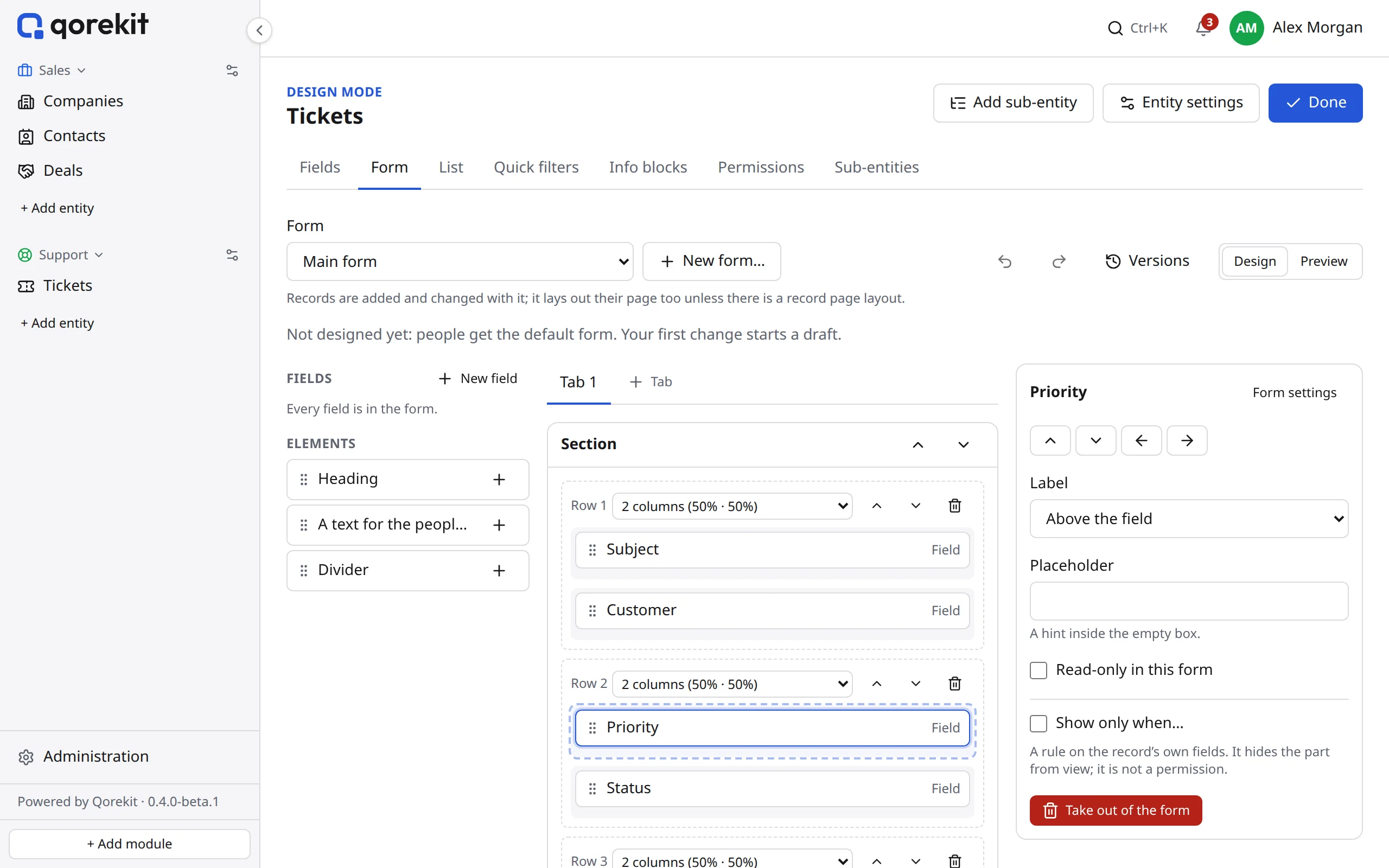
- The palette on the left lists the fields and tables not in the form yet, and headings, texts and dividers. Drag one into a column, or press its + to add it to the column you chose. New field adds a field to the entity and to the form at once.
- A tab holds sections; a section holds rows; a row is split into one to four columns (choose the split beside the row). Columns sit side by side once the form is wide enough and stack on a phone.
- Choose any part to set it up on the right. Items move with the arrows there too, without dragging, and Tab moves one to another tab, at its end.
- Undo and Redo (Ctrl+Z, Ctrl+Shift+Z) take back and bring again any step.
- A field added to the entity outside the designer, once the form is published, appears at the end of the form's first tab (its first tab and section shown without a condition), so that it is not lost in a tab nobody opens. Move it where it belongs; a field you take out of the form stays out.
Settings of a part
- Field: its label above it, beside it or hidden; a placeholder; read-only in this form.
- Heading and text: the words; a text can look like information, success, a warning or danger.
- Tables (sub-records, a relation managed as a table, records pointing here): the columns in order, how many rows at once, and the order. In a tab of its own moves the table into a tab, where it shows all its records, a page at a time, with a search box.
- Section: its name; whether it folds, and whether it starts folded.
- Tab: its name. A tab holding only a table is named after it.
- Show only when…: a rule on the record's own fields, written as a filter. The part shows while the rule holds. A rule hides; it is not a permission.
- The form (nothing chosen): the title of its window for a new record ("Task details" instead of "New record"), the width it opens at (normal, wide or the whole screen), whether fields a rule hides are emptied when saving, and whether its window closes only with Cancel (not with a click outside it or Escape).
Previewing, publishing and versions
Every change is kept as a draft; people keep the published form until you choose Publish. Preview shows the form as people will fill it in, at the width of a desktop, a tablet or a phone. Each publish is kept: Versions lists them, and Bring back as the draft starts from one again.
Rules of fields
Two settings live with the field rather than the form, because they hold for every way records are written (the form, the API, imports). Set them in the field's window:
- Required only when…: the field must have a value while the record matches a rule, such as the reason when a deal is lost.
- Default for new records: the person creating the record, today (or some days from it), now, a value of the parent record, a parameter of the page address (a link ending in
?source=webstarts a record with source filled in), or the value of a variable.
Information blocks
The Info blocks tab of design mode adds notes in a colour (information, success, warning, danger), with a title and rich text:
- Above the list, for everyone who opens it, or under a record's heading.
- For everyone who sees the records, or only for some roles.
- On a record's page, Show only when… a rule holds, such as "while the order is open".
- Drag blocks into order; switch one off to keep it without showing it.